Learning path › Lesson 2
Formatting cells
Goal: make text bold, align it and give it colours, so your table becomes clear
and tidy.
First select, then format
The buttons on the  Cell (C) tab work on the
selected cells:
- click one cell;
- drag the mouse over several cells;
- click a row header (1, 2, 3 ...) or column header (A, B, C ...) for a whole row or column.
Make it yourself
- Open your shopping list from lesson 1 (or the example of lesson 1).
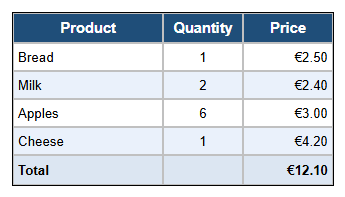
- The header: click row header 1. Click Bold and Centre, choose dark blue for Cell colour, white for Text colour and set the Font size to 11.
- Quantity: click column header B and click Centre.
- Price: click column header C and click Align right. Now the amounts line up neatly.
- Alternating rows: give rows 3 and 5 a light blue cell colour. A long list is much easier to read that way.
- Total: add a row with AR (Table tab), type Total and the amount, and make the row bold.
Tip: formatted a cell nicely? Copy it with Ctrl+C, select
another cell and paste with Ctrl+V: both content and formatting are copied.
Why align?
You read text from left to right, so align it left. Numbers and amounts are easier to compare when the digits are lined up: align them right. Short values such as a quantity can go in the centre.
Exercise
Give the Total row a light yellow cell colour and make the total amount red. Then make the name Cheese italic, because it has not been bought yet.
Solution
Click the row header of Total and choose light yellow for Cell colour. Then click only the cell with the amount and choose red for Text colour. Click the cell Cheese and click Italic.
Working on Linux? Then open the example yourself with Open table designer: folder
lessen/en, file les02-opmaak.htd.