Learning path › Lesson 1
Your first table
Goal: make a simple table, type text in the cells, save your work and view it
as a web page.
Table, row, column and cell
- A table consists of rows (horizontal) and columns (vertical).
- Where a row and a column cross, there is a cell: that is where the text goes.
- Above and to the left of the table you see the headers (A, B, C ... and 1, 2, 3 ...). Use them to select a whole column or row.
Make it yourself
- A new table has 5 columns and 5 rows. We only need 3: click column header D and on the
 Table (T) tab click DC
(Delete column). Do the same for column E.
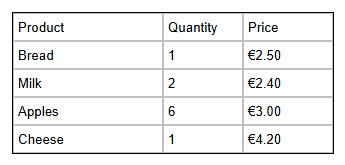
- Double-click the first cell and type Product. Finish with Ctrl+Enter or click another cell.
- Type Quantity and Price in the next cells in the same way, and fill in the shopping below.
- Is a column too narrow? Drag the dividing line in the column headers to the right.
- Save your design with
 Save table designer. That way you can carry on later.
- Click Click here for extra functions at the bottom and then
 Open test browser: you see your table as a web page.
Good to know: the
.htd file is your design, to keep working on.
If you want a real web page, save an .html file with Save HTML document in the roll-out panel
(see Files & export).Exercise
Add a row at the bottom with Eggs, 12 and €3.50. Then add a fourth column Shop on the right and fill in where you buy each product.
Solution
On the Table (T) tab click AR (Add row): an empty row is added. Double-click the cells and type the text. AC (Add column) adds a column; type Shop in the top cell and fill in the rest. Save again and look at the result in the test browser.
Working on Linux? Then this help opens in your normal browser and the button cannot open the example
in the designer. Open it yourself with Open table designer: folder lessen/en, file
les01-boodschappen.htd.