Learning path › Lesson 8
From design to website
.html), understand the HTML
code and open a saved page again later to carry on working.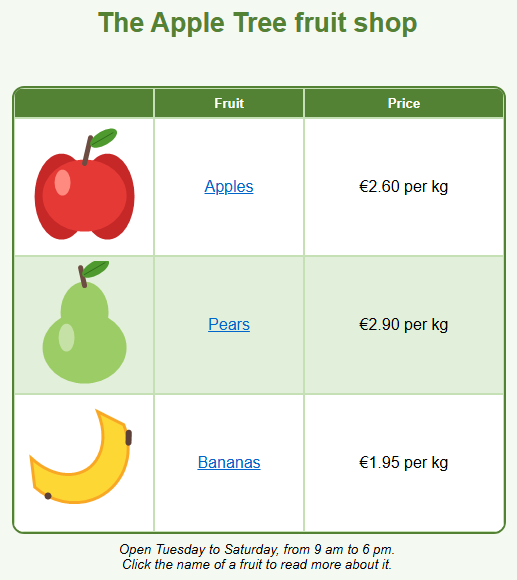
Design or web page?
| File | What is it? | Open with |
|---|---|---|
.htd | Your design, to keep working on. | Advanced Html Designer |
.html | The web page, as visitors see it. | any web browser (and the designer too) |
Viewing the HTML code
Click Click here for extra functions at the bottom. The roll-out panel has two tabs:
- Html Document: the complete web page, with the text blocks and the page settings.
- Html Table: only the table, to paste into an existing web page.
The most important parts of the code:
| Code | Meaning |
|---|---|
<table> | start of the table (</table> is the end) |
<tr> | a row (table row) |
<td> | a cell (table data); colspan and rowspan for merged cells |
style="..." | the formatting: colours, borders, alignment, font size |
<a href="..."> | a hyperlink |
<img src="..."> | an image; the image itself is built into the code (data:image/png...) |
<div class="designer-textblock"> | a text block |
Turning it into a web page
- Open the example (or your own design) and open the roll-out panel.
- On the Html Document tab click
 Save HTML document.
- Choose a folder and a name, for example
fruitshop.html. - Double-click the file in Explorer: it opens in your web browser. Click the links to test them.
Because the images are built into the code, your web page is a single file. You can e-mail it, put it on a
USB stick or place it on a website. Many web hosts require the home page to be called index.html.
Your web page as a PDF
Want to print your work or send it to someone? In the roll-out panel, on the Html Document tab, click PDF (Save as PDF) and choose a name. The PDF gets the paper size of the page (Settings tab) and looks the same as in the test browser: with colours, images, text blocks and clickable links. A long table continues on the next page.
Opening a web page again
An .html file saved with Save HTML document also contains your complete design, invisibly.
Open it with  Open table designer and you can simply
carry on working, even without the
.htd file. More about this in Files & export.
Exercise
Save the example as fruitshop.html and open it in your browser. Bananas are getting cheaper: they now cost
€1.75 per kg. Change the price in the designer, save the web page again and refresh your browser
(F5). Then find the address of the link behind Bananas in the HTML code.
Solution
Close the roll-out panel, double-click the price of the bananas in the designer and type the new price. Open the roll-out panel
again, click Save HTML document and choose the same file: the old one is replaced. Press F5 in the browser and you
see the new price. In the code the link reads <a href="https://en.wikipedia.org/wiki/Banana">Bananas</a>.
Working on Linux? Then open the example yourself with Open table designer: folder
lessen/en, file les08-fruitwinkel.htd.