Learning path › Lesson 7
Text blocks
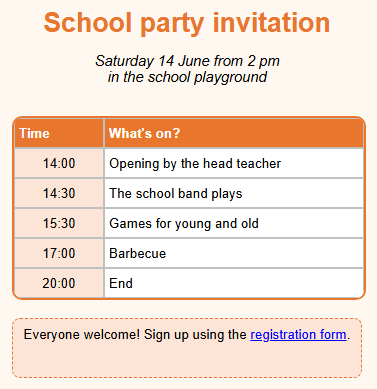
Table or text block?
- Use a table for data in rows and columns.
- A text block is a free text box you can put anywhere on the page: a title, a short explanation, a remark or a footer.
Make it yourself
- Make a table of 2 columns and 6 rows with the programme (time and activity).
- The table must go a little lower on the page to make room for the title: hold Ctrl and drag
the table down, or increase Move Y on the
 Table (T) tab.
- Click on the page above the table and on the
 Text block (B) tab click
 TBA. A text block appears.
- Double-click the block and type School party invitation. Click next to it to stop typing.
- Format the title: Bold, Centre, Font size 20 and an orange Text colour. Drag the bottom-right corner to make the block as wide as the table.
- Make a second block with the date and the place in the same way, and a third block below the table.
- Give the bottom block a frame: switch Transparent off, choose a light Text block colour and choose dashed for Border style.
A link in a text block
In a text block a single word or a piece of text can be a link. Double-click the block, select the piece of text
(in the example registration form) and on the Text block tab click
 HL+. Type the address. You can also make a single word bold or
italic this way: select it and click Bold or Italic.
Exercise
Put a new text block to the right of the table with the text Free entry! in red and bold, with a dotted frame. Then move it with Move X and Move Y until it sits nicely next to the table.
Solution
Click to the right of the table and click TBA. Double-click, type the text and click next to it. Click Bold, choose a red Text colour, switch Transparent off and choose dotted for Border style. Adjust Move X and Move Y until the block is in the right place. Check in the test browser that it looks the same there.
Working on Linux? Then open the example yourself with Open table designer: folder
lessen/en, file les07-uitnodiging.htd.